Let's get your photos and videos from Facebook and Instagram.
Just takes a few minutes to get the request in. Then Facebook or Instagram prepares your file — usually within a day or two — and we'll walk you through the rest.
Video walkthrough coming soon
Here's what we're about to do
Open your account in a new window.
Pick which platform you're requesting from. We'll open it beside this page so you can follow along here.
Follow along on the Facebook page.
Work through these steps in the window you just opened. Take your time — just takes a few minutes.
Open the page
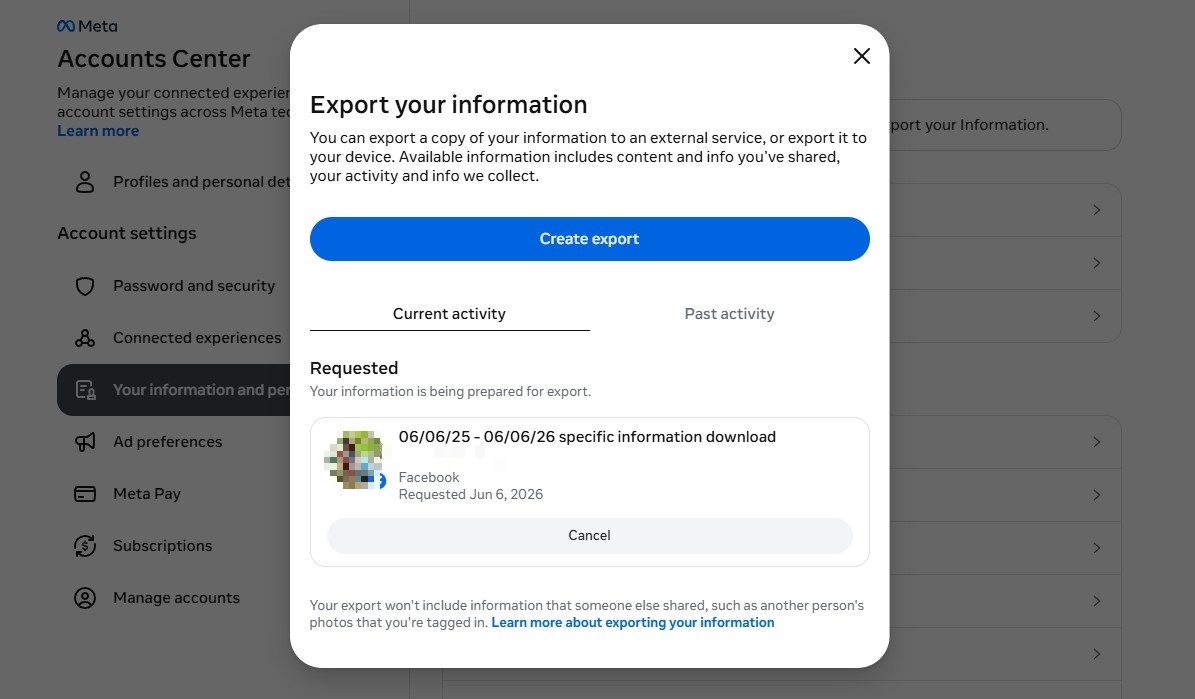
In the Facebook window, you should see a popup that says "Export your information." Click Create export.
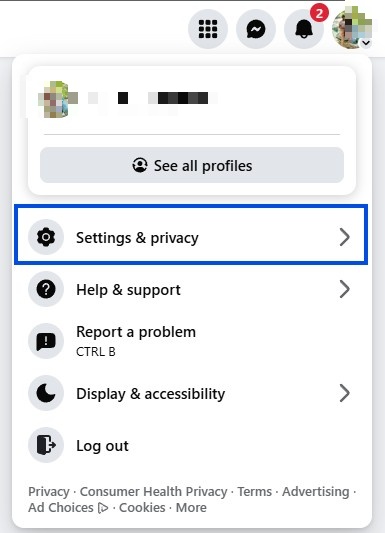
Pick your account
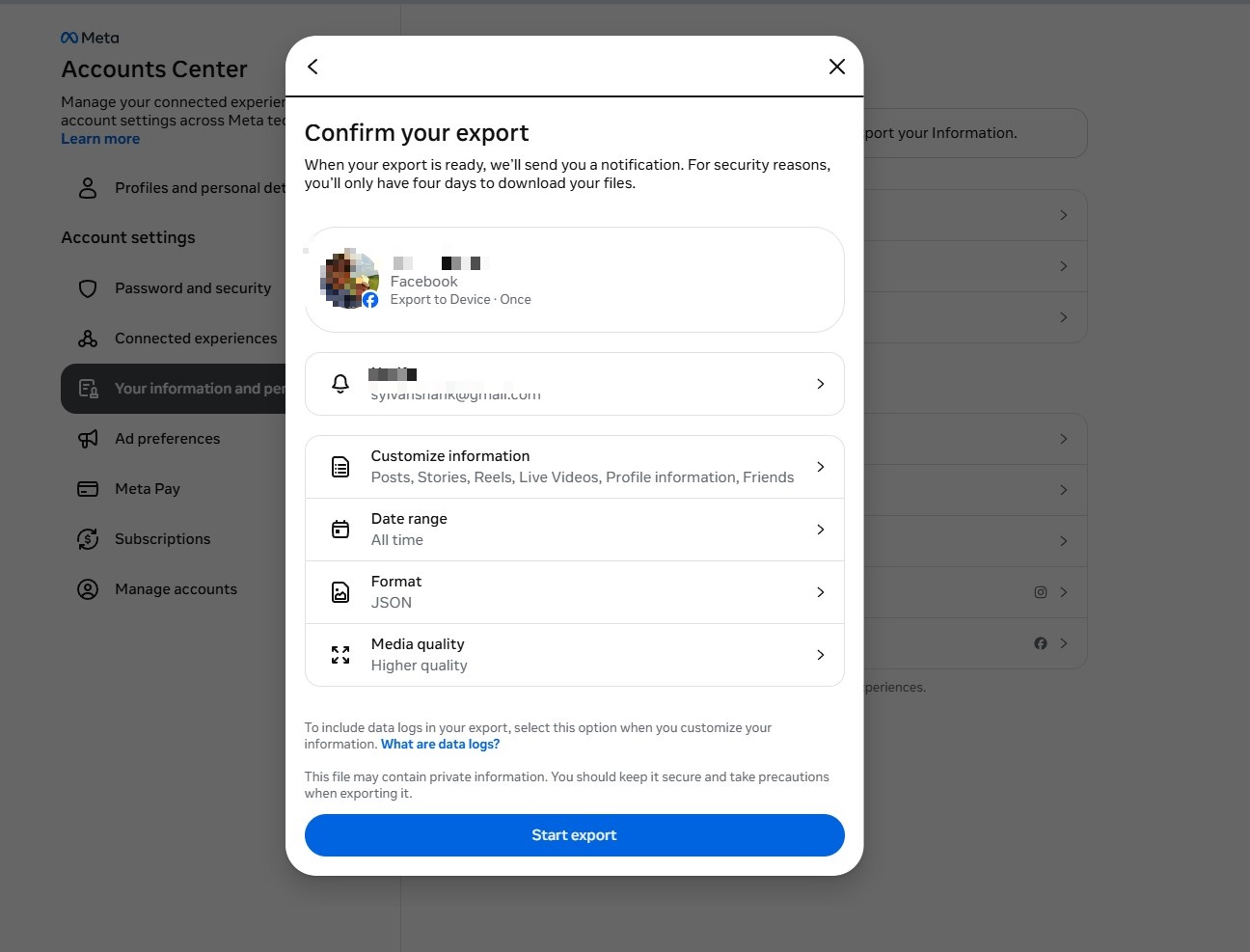
Select your Facebook account — you'll see your name and photo. On the next screen, choose Export to device.
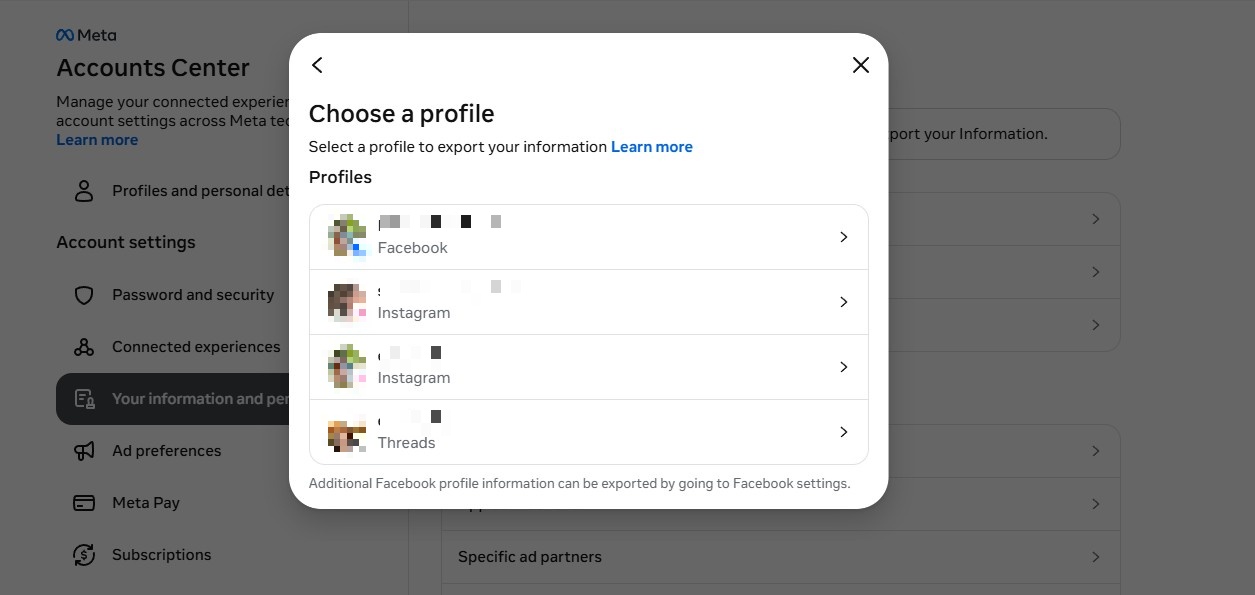
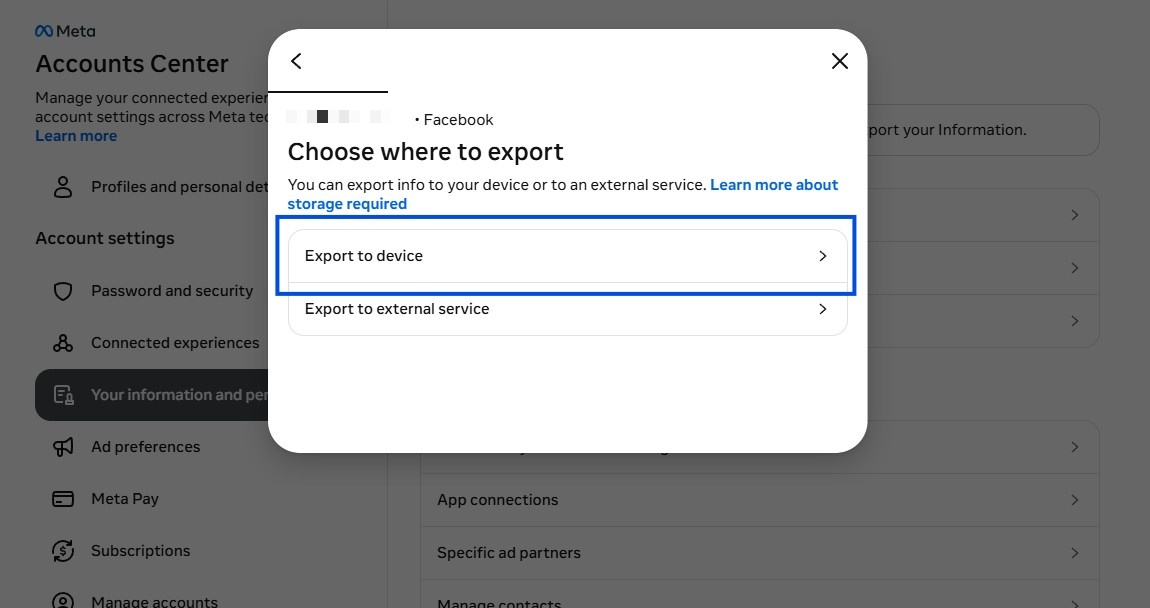
Choose what to include
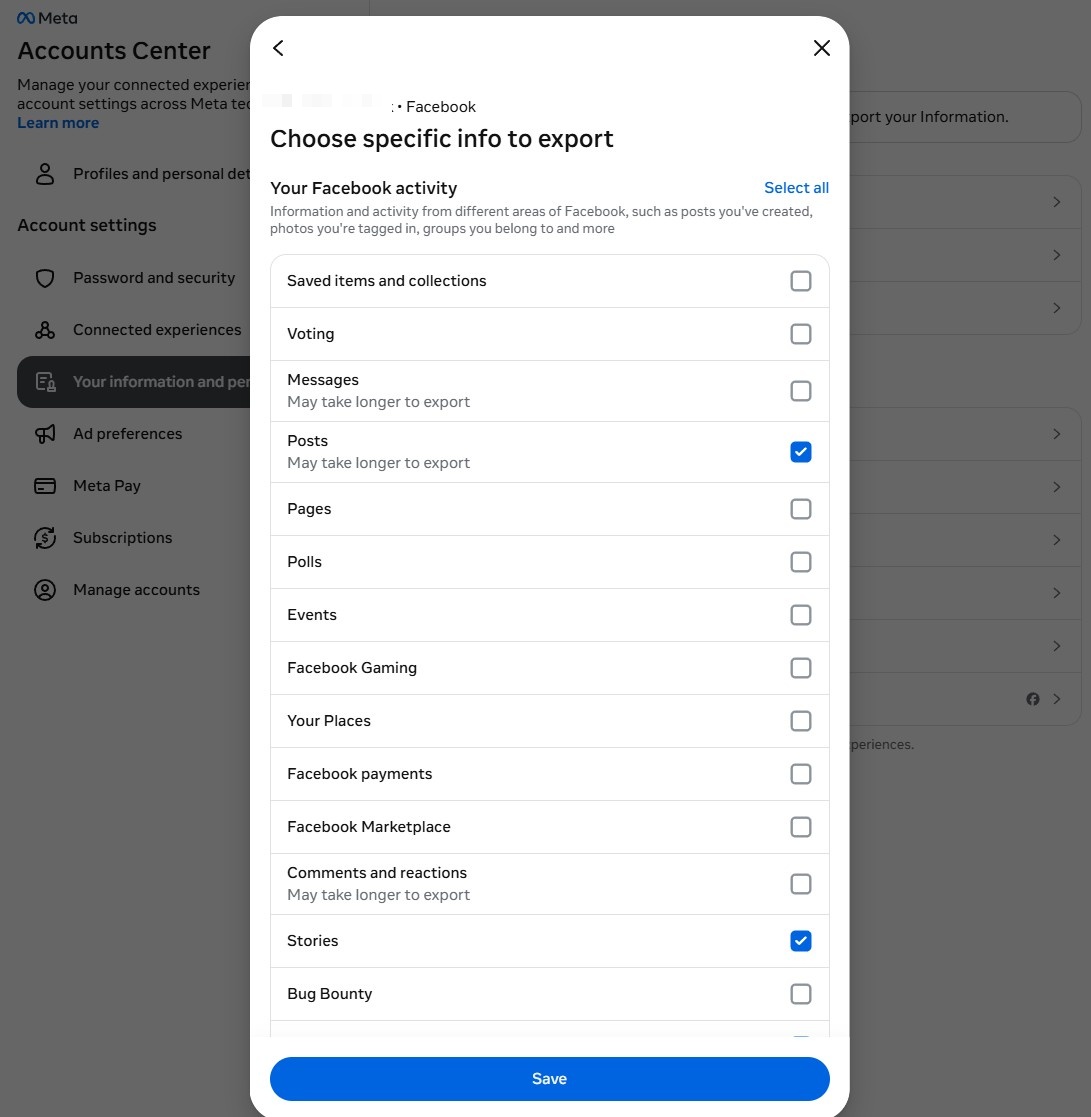
Click Customize information. You'll see a long list — scroll through and check only these items:
Your Facebook activity:
- ✓ Posts
- ✓ Stories
- ✓ Reels
- ✓ Live Videos
- ✓ Groups
Personal information:
- ✓ Profile information
Connections:
- ✓ Friends
To protect your privacy, leave these unchecked
- ✕ Messages
- ✕ Security and login information
- ✕ Ads information
- ✕ Data logs (takes 15 days and contains nothing useful)
- ✕ Everything in Logged information, Security, and Preferences
Set the format and quality
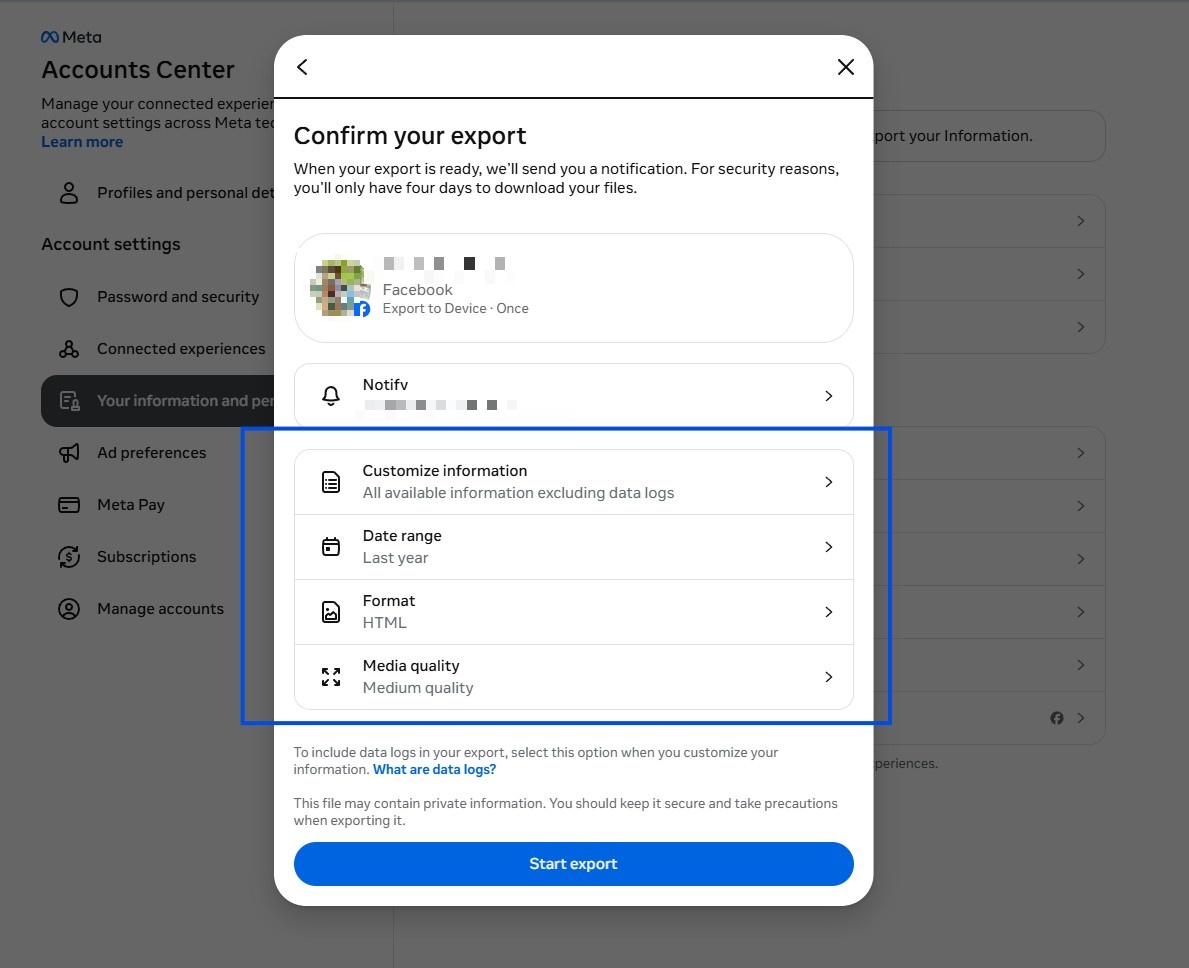
Back on the "Confirm your export" screen, set these three options:
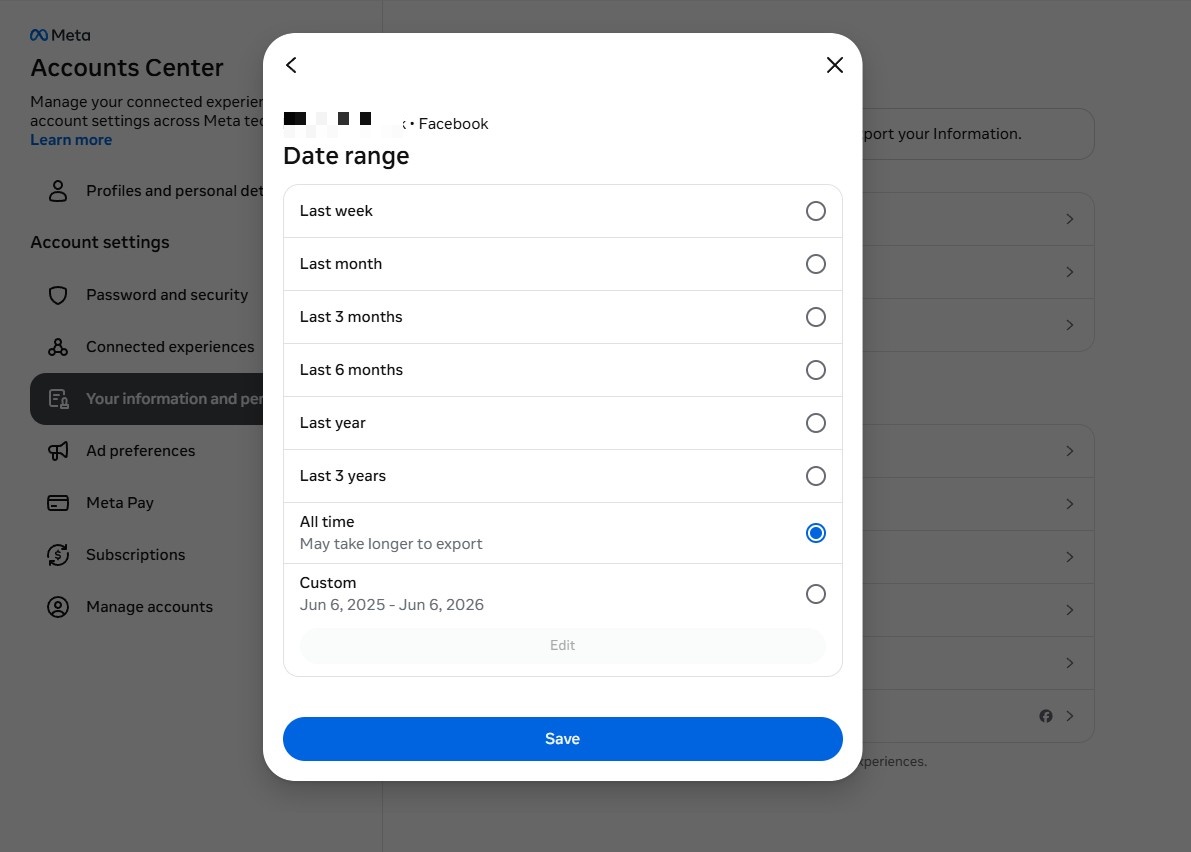
- ✓ Date range: All time
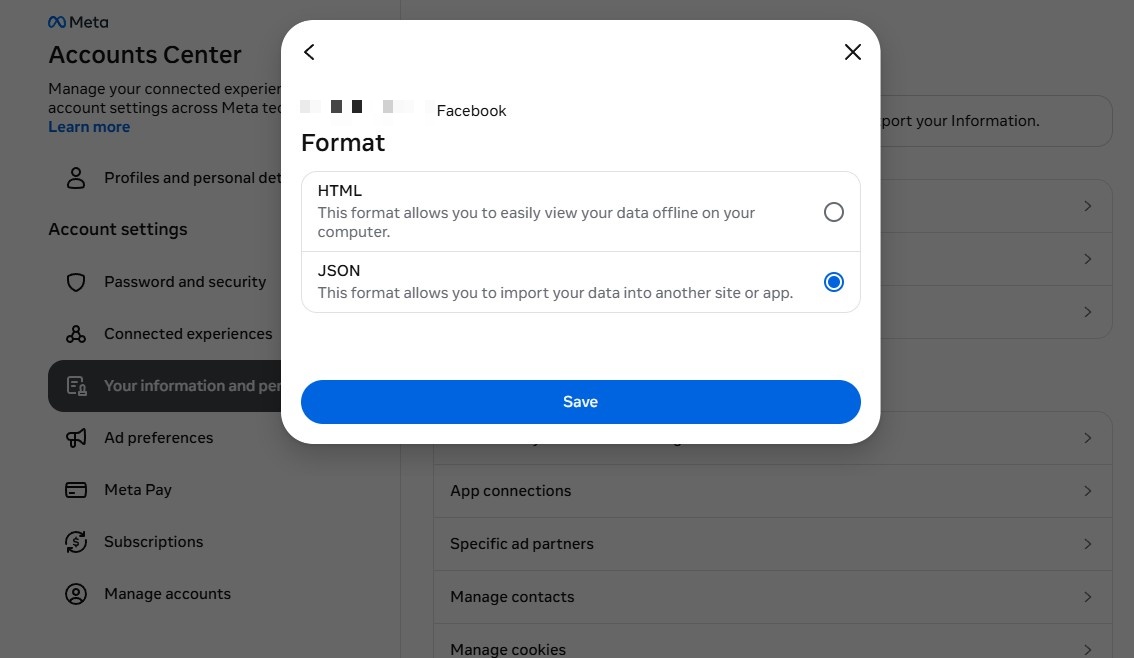
- ✓ Format: JSON (not HTML)
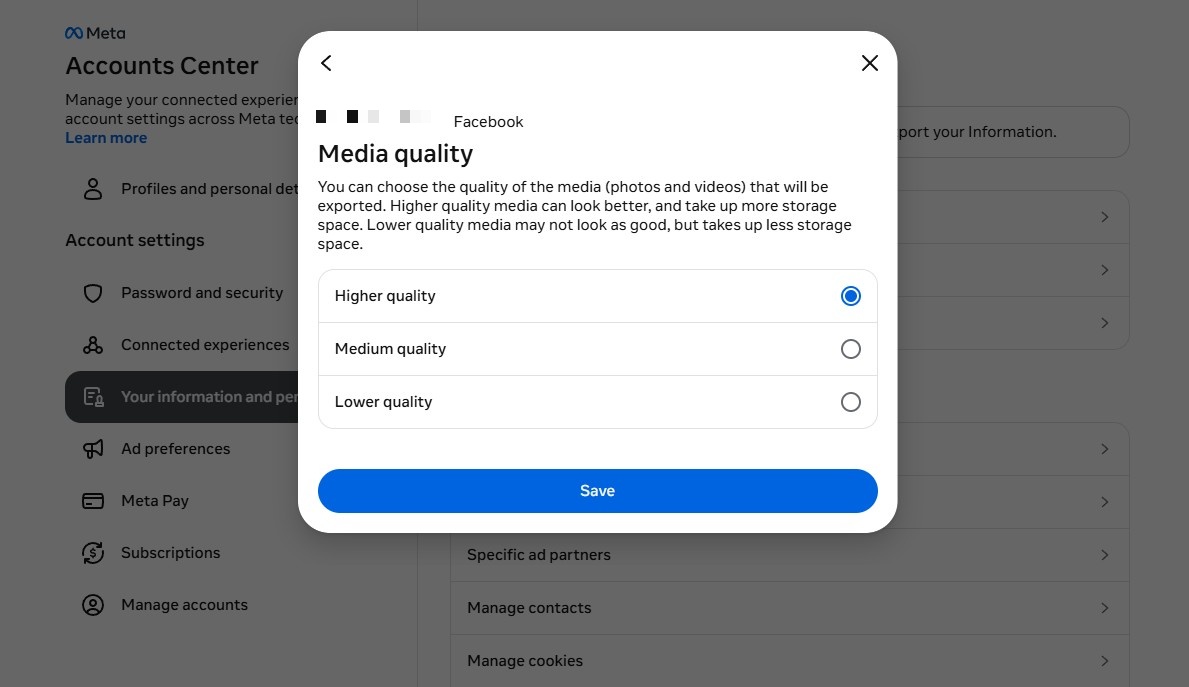
- ✓ Media quality: Higher quality
Create the export
Review your settings and click Create export. Facebook will email you when your archive is ready — usually a few hours, sometimes up to a couple of days.
Open the page
In the Instagram window, you should see an "Export your information" popup. Click Create export.
Pick your account
Select your Instagram account — you'll see your username and profile photo. On the next screen, choose Export to device.
Check Media only
Click Customize information. Scroll through the list until you find Media — check that box only. Leave everything else unchecked.
Set the format and quality
- ✓ Date range: All time
- ✓ Format: JSON (not HTML)
- ✓ Media quality: Higher quality
Start the export
Click Start export. Instagram will send you an email when your file is ready — usually a few hours, sometimes up to a couple of days.
Leave your email and we'll tell you when to come back.
Facebook and Instagram take 1-2 days to prepare your file. They'll send you an email when it's ready — so will we, with a link straight to the upload page.
Remind me when my file is ready
We'll send you one email when it's time to come back and upload. That's it.
You're all set.
We'll email you when it's time to come back. Check your inbox for a quick confirmation from us.